Rocket.Chat on VCloud is a self-hosted team communication platform: channels, direct messages, threads, and file sharing. It's the most established open-source alternative to Slack.
Before you install#
A small team runs comfortably on a modest tier. Rocket.Chat becomes more memory-sensitive as concurrent connections grow, so a larger team is a reason to plan for more headroom - see Plans.
Installing it#
From the App Store, find Rocket.Chat and select Install.
Choose organization scope - this is almost always a shared, team-wide instance - and leave Authentication Mode on managed so single sign-on is wired up automatically:
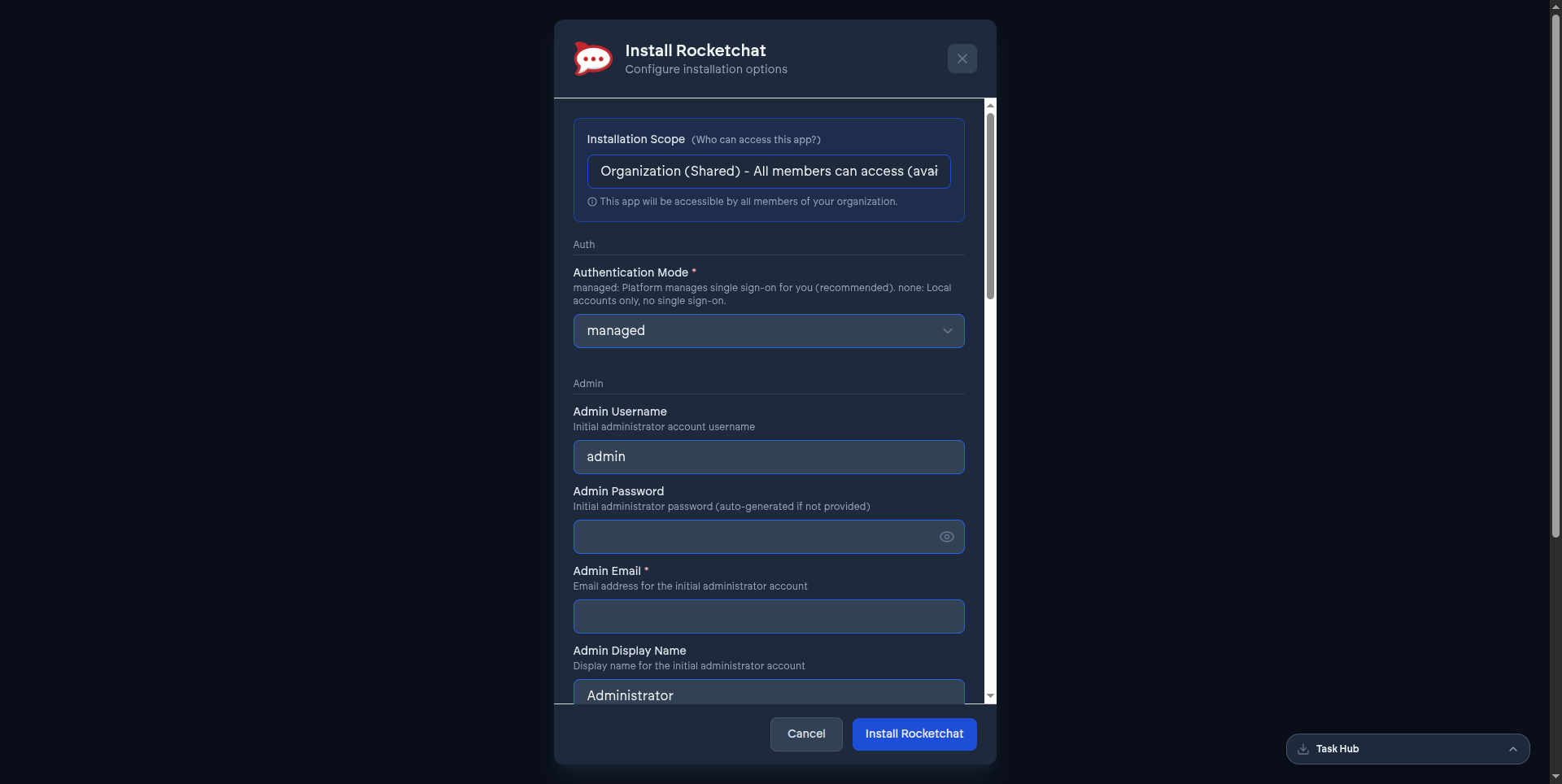
Selecting Install Rocketchat starts the deployment right away:
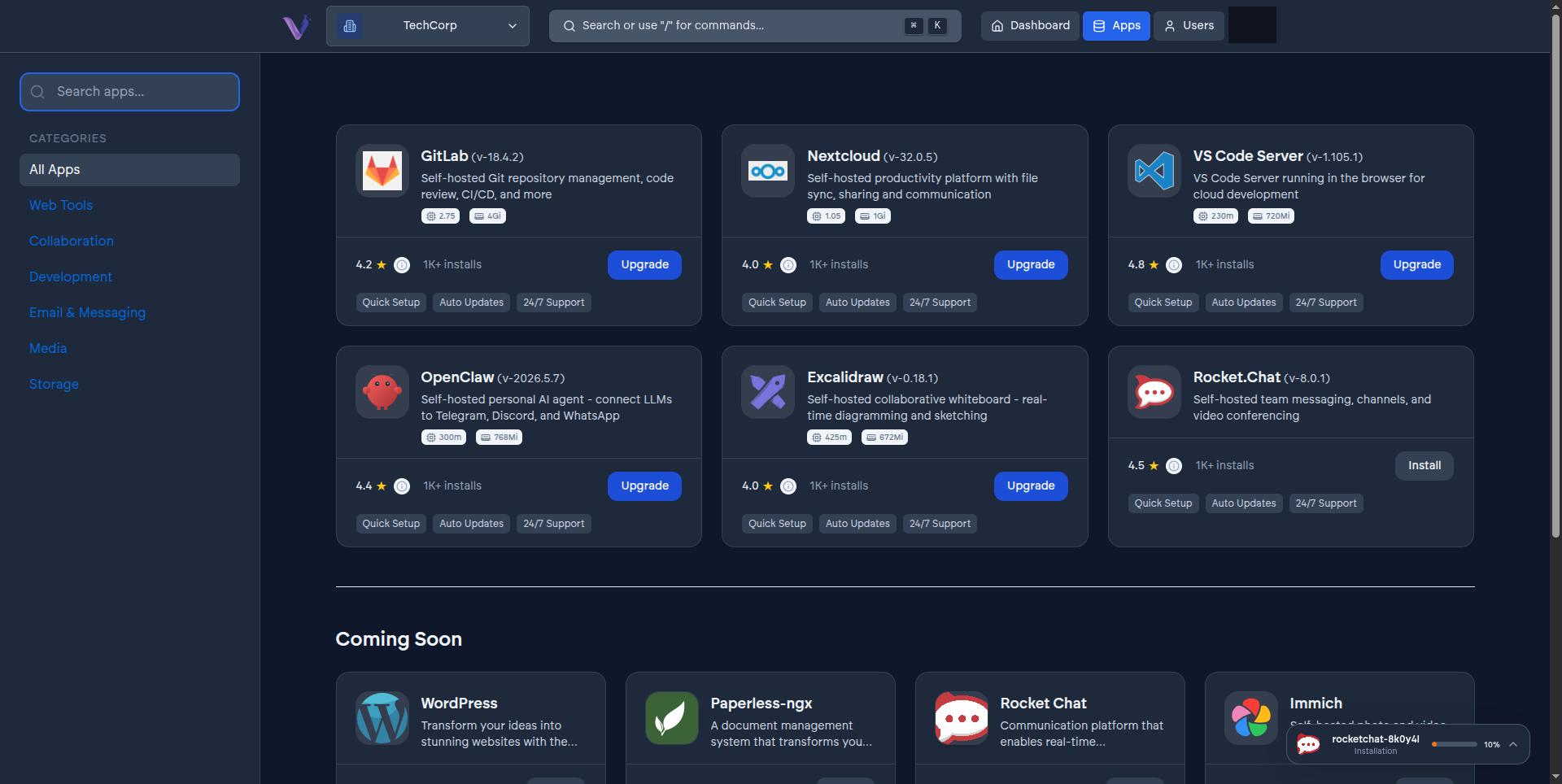
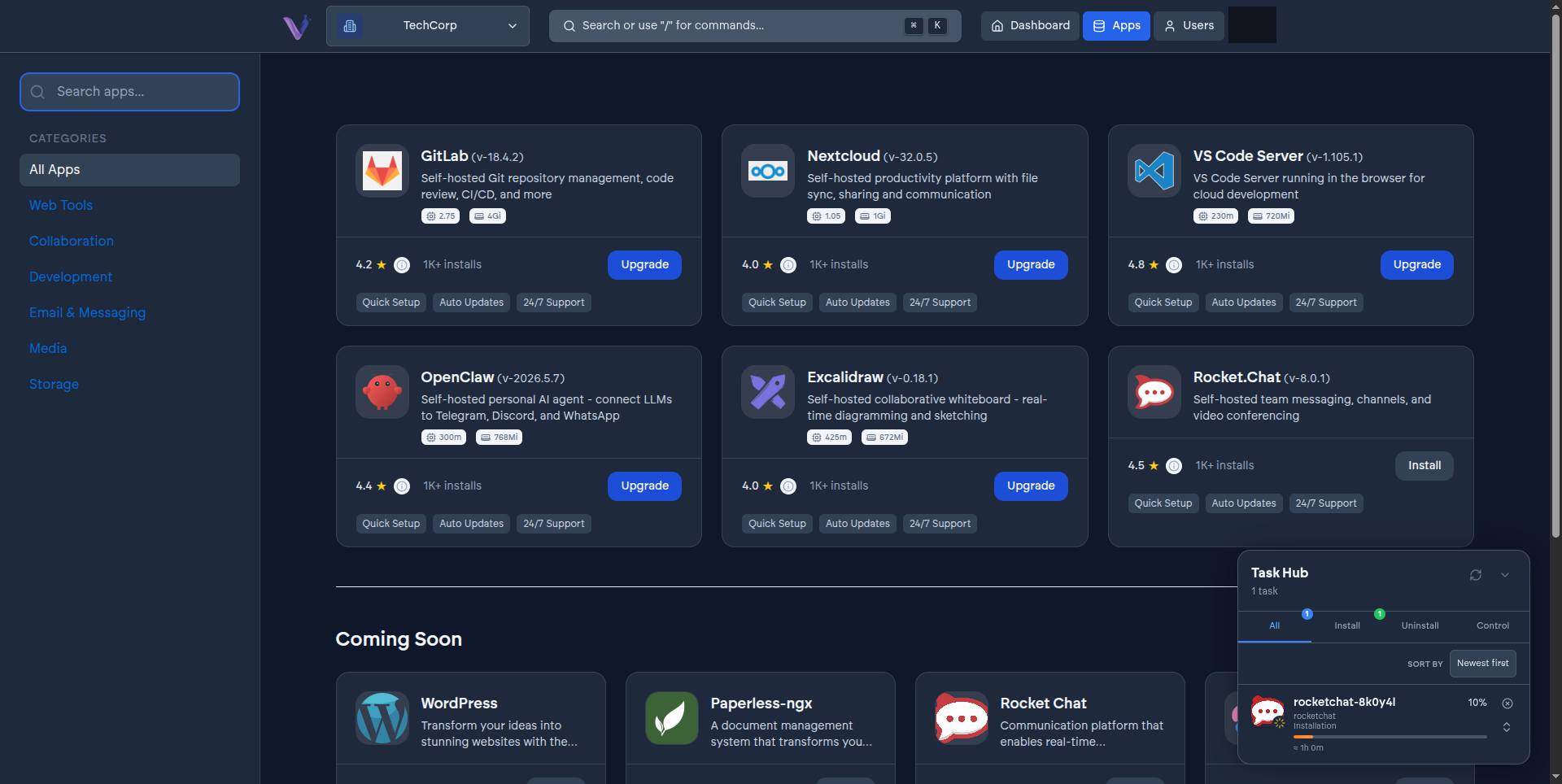
Track progress from the Task Hub - a fresh Rocket.Chat install can take up to about an hour:
Select Open once running. You're signed in automatically with your VCloud account.
What VCloud adds on top of upstream Rocket.Chat#
- Single sign-on for the web app and every client.
- Correctly configured mobile push notifications - a frequent failure point on self-managed installs, where the app can look broken while the server is actually fine.
- A properly configured connection path for real-time messaging, so chat doesn't quietly degrade to slow polling.
Configuration options#
- Authentication Mode - managed (default, single sign-on) or none (local accounts only). See Understanding install parameters.
- Admin account - username, password (auto-generated if left blank), email, and display name for the initial administrator.
- Upload storage and database storage, sized independently.
- Scaling Mode - off by default. Turning it on splits presence tracking, real-time messaging, accounts, and authorization into their own separately-sized services plus a dedicated message bus, worth it once you anticipate real growth rather than a small team.
- Email notifications - off by default; enabling it asks for your SMTP server details, needed for password-reset and invite emails to actually send.
- Video conferencing (Jitsi) is built but currently disabled platform-wide due to a technical limitation - it's on the form, but not something you can turn on yourself. Set it up separately inside Rocket.Chat afterward if you need it.
Message history#
Unlike Slack's free tier, nothing is hidden behind a retention limit - every message stays stored and searchable, bounded only by your instance's storage.
Migrating in#
Rocket.Chat includes a Slack importer that brings across channels, messages, and users from a standard Slack export. Whether direct messages come across too depends on what your Slack plan permits exporting.