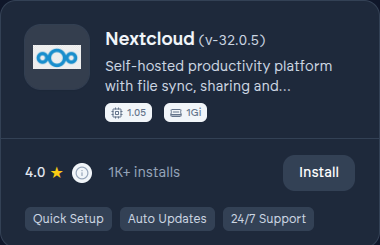
Nextcloud on VCloud is a self-hosted productivity platform: file sync and share, calendars, contacts, and collaborative document editing. It's the most widely deployed open-source alternative to Google Drive or Dropbox for file storage.
A note on sign-in#
Nextcloud doesn't get single sign-on wired up automatically the way most of the catalog does. Its community edition doesn't support SSO without additional Nextcloud apps, so instances use Nextcloud's own built-in accounts instead, starting with an auto-generated admin password if you don't set one - see Single sign-on, everywhere for how this differs from the rest of the catalog.
Before you install#
Nextcloud is usually storage-bound rather than compute-bound - the deciding factor for which plan tier fits is how much file data you expect to hold, more than raw processing power. See Plans for how storage allowance scales across tiers.
Installing it#
- From the App Store, find Nextcloud and select Install.
- Choose organization scope for a shared team drive, which is the common case.
- Wait for the deployment to finish - see Deployments.
- Select Open once running. You're signed in automatically with your VCloud account.
What VCloud adds on top of upstream Nextcloud#
- Valid, automatically renewed TLS, without which desktop and mobile sync clients simply refuse to connect.
- Version upgrades handled for you, in the correct order - Nextcloud does not support skipping major versions either.
Configuration options#
- Admin username - defaults to
admin. - PostgreSQL - built in by default; an external database is also selectable if you already run one.
- In-memory cache - on by default, for performance and session handling.
- Image processing (Imaginary) - off by default; enable it for faster thumbnail generation on large photo libraries.
Using the official clients#
Because your instance has a real domain with valid TLS, the official Nextcloud desktop client, and the iOS and Android apps, connect the same way they would to any Nextcloud server. Any standard WebDAV, CalDAV, or CardDAV client also works.
Migrating in#
Move files over with the Nextcloud desktop client or a general-purpose sync tool. If you're consolidating from another Nextcloud instance, its built-in user migration tooling can move accounts across with their settings intact.