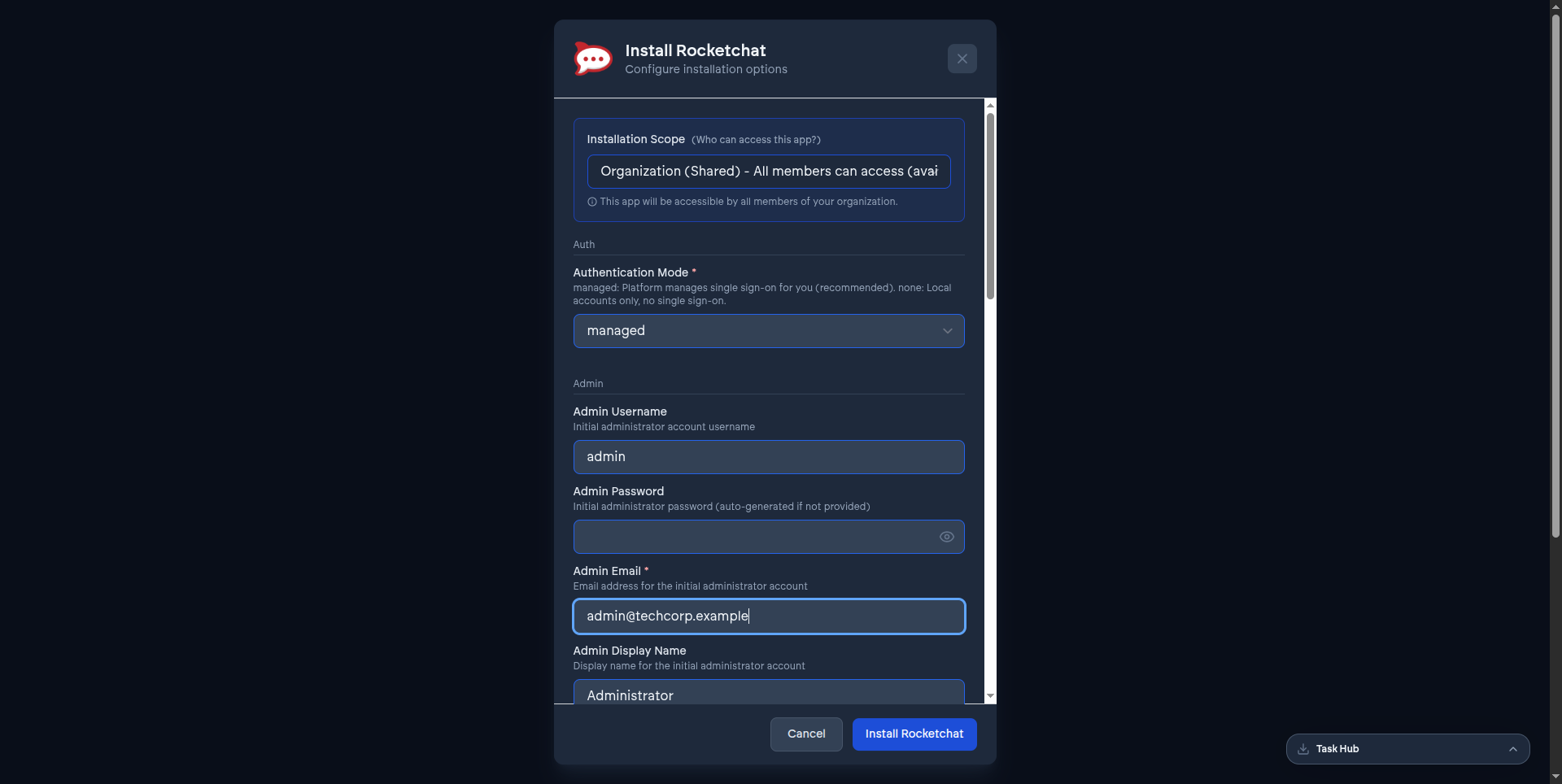
This walks through installing your first app in more detail than the quick start - useful if you want to understand each decision along the way rather than just get moving fast.
1. Open the App Store#
From the dashboard, open the App Store. What you see here is fetched live from VCloud, so it always reflects what your organization can actually install right now - see The App Store.
2. Pick an app#
Browse by category, or go straight to a specific app's page for its description, category, and current version. If you're not sure which app fits what you need, the app-specific guides under Guides › Installing apps each explain what the app is for and what it typically replaces.
3. Choose Install, and choose a scope#
Selecting Install asks you one important question first: should this instance belong to your whole organization, or just to you? For a first app, organization-scoped is usually right unless you're specifically setting up something personal like a development environment. See App instances.
4. Watch it deploy#
Installing isn't instant - it's a background deployment that moves through preparing the app, wiring up sign-on, and bringing it online. The dashboard shows you this progress; you don't need to keep the tab open and watch, but you can.
5. Open your app#
Once the instance reaches Running, select Open. You'll be signed in automatically using the same account you used for VCloud - there's no separate login screen for the app itself to figure out.
Next#
- Inviting your team so others can use what you just installed.
- Managing app instances for what to do with it from here.